Built to stay fast

Proxies, the cache and the viewer’s resolution are yours to use, and a lot more the app does on its own. Here is how they work, and where their files go.

Proxies

Light copies of heavy videos, at half the size, for smooth editing. The viewer shows the copy; export, the Tracker and the AI tools always use the original. 10-bit and log clips keep their depth, so grades look the same.

  1. 1

    Make a proxy

    Project panel ▸ right-click a video

    Choose Create Proxy, for one clip or for all selected ones. It is made in the background while you keep working; the Type column shows how far it is. The project has to be saved once, so the proxy has a folder to go to.
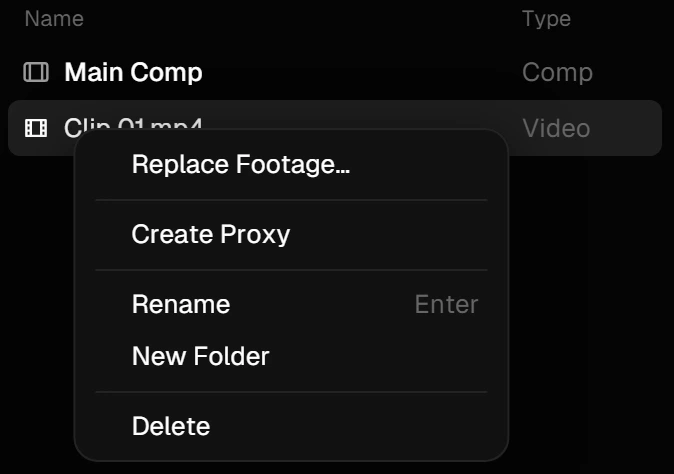
    The right-click menu of a video in the Project panel, with Create Proxy
  2. 2

    Or let the app do it

    File ▸ Proxies

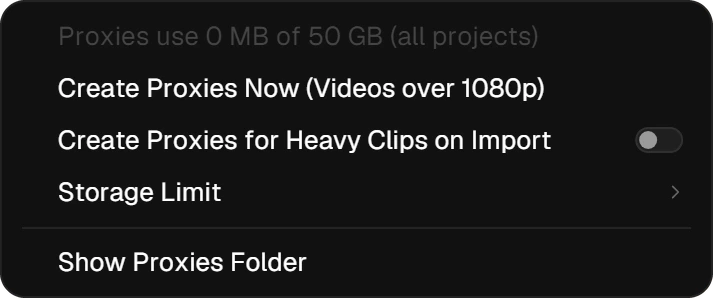
    Create Proxies Now makes them for every video over 1080p in the project. Turn on Create Proxies for Heavy Clips on Import and new heavy clips get one by themselves.

    The File ▸ Proxies menu
  3. 3

    Switch between proxy and original

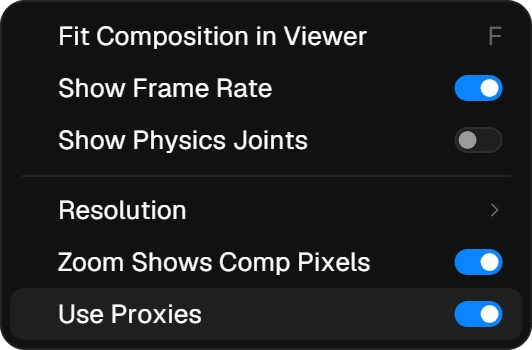
    View ▸ Use Proxies

    On by default. Turn it off to see the original in the viewer, for example to check fine detail. Export always uses the originals, whichever you choose.

    The View menu with Use Proxies switched on

Where it is stored

In a Proxies folder next to your project file. File ▸ Proxies ▸ Show Proxies Folder opens it.

Managed for you

  • A storage limit covers the proxies of all your projects together: 50 GB unless you choose another under File ▸ Proxies ▸ Storage Limit.
  • Over the limit, the proxies used longest ago go first, never those of the open project. At least 20 GB always stay free on the drive.
  • Proxies that nothing uses any more are removed when you save. Change the original and its proxy is let go, so you never see an outdated copy.
  • Nothing to clean up by hand. To drop one, right-click the video ▸ Remove Proxy.

Cache

Turn it on for a heavy comp and every frame you see is kept, so it plays in real time with sound. The first pass renders each frame without skipping one; after that the range plays from the cache.

  1. 1

    The Caching button

    Timeline toolbar

    The Caching button: a chip symbol, blue when caching is onLook for this button

    Off by default: every frame is rendered live and nothing is kept. Click it and it turns blue; from then on the green bar under the work area shows the frames in memory, a blue bar those kept on disk. An edit only drops the frames it changes, and Undo brings the cached ones back. The app remembers your choice.

    The Timeline toolbar with the Caching button on, and the green bar of cached frames under the work area
  2. 2

    When it caches

    Composition ▸ Preview

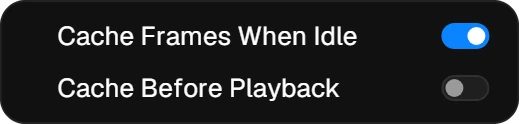
    With caching on, Cache Frames When Idle (on by default) fills the cache from the playhead on whenever you stop for a moment, and pauses as soon as you click or type. Cache Before Playback makes Space cache the whole range first, then play it in real time.

    The Composition ▸ Preview menu
  3. 3

    Memory and disk cache

    Edit ▸ Preferences ▸ Memory (Preview Cache)

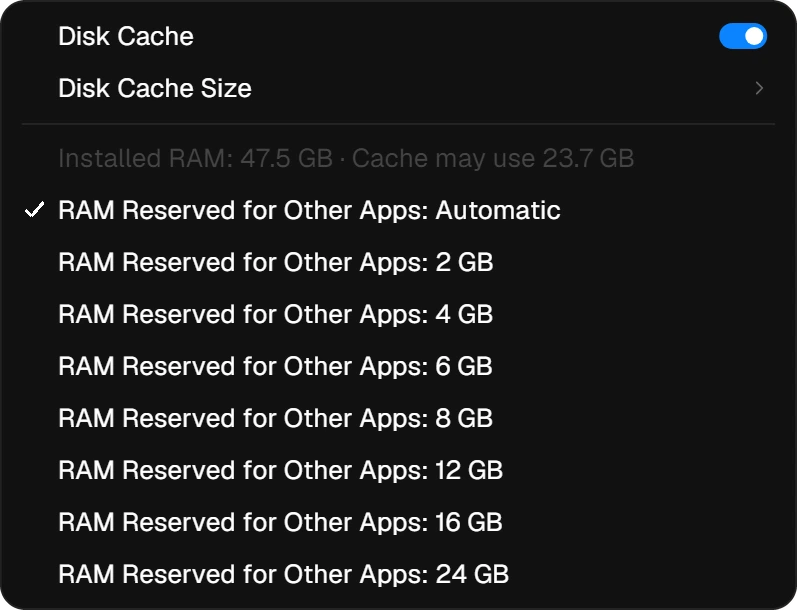
    The disk cache (on by default) also keeps frames that took a while to render on your SSD, so they are there again after a restart. Below it: its size, and how much RAM stays free for other apps (Automatic by default).

    The Memory (Preview Cache) menu with Disk Cache on and the RAM reserved for other apps
  4. 4

    Empty it, if you want to

    Edit ▸ Purge

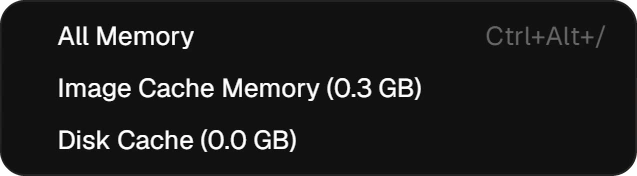
    You never have to, but you can: All Memory (Ctrl+Alt+/), only the image cache, or the disk cache. Handy before you hand the computer to another heavy app.

    The Edit ▸ Purge menu

Where it is stored

Frames for playback in RAM. The disk cache in Hope Creative’s own data folder on your system drive, never in your project.

Managed for you

  • The cache only takes what your computer can spare. By default half of the RAM stays free for other apps, and memory is given back as soon as other programs need it.
  • The disk cache stays within its size, 50 GB unless you choose another: the frames used longest ago go first, and at least 20 GB always stay free on the drive.
  • Frames are kept by what they show. Change the project, a font or a plug-in and the old frames are simply not used, so you never see an outdated picture.

Resolution

The viewer never has to draw more than you can see. Two settings decide how sharp it renders while you work; the export is always rendered in full.

  1. 1

    The resolution button

    Viewer bar, next to the zoom

    The resolution button in the Viewer bar, set to AutoLook for this button

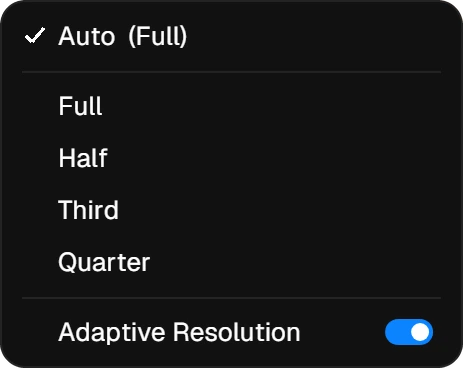
    Auto, the default, follows the zoom and your screen: the viewer renders only as many pixels as the display shows, so a zoomed-out comp looks the same with far fewer pixels to draw. The menu shows what Auto chose. Pick Full, Half, Third or Quarter to fix it yourself, for example Half for a very heavy comp where you only judge the timing.

    The resolution menu of the Viewer: Auto, Full, Half, Third, Quarter and Adaptive Resolution
  2. 2

    Adaptive Resolution

    The same menu, or View ▸ Resolution

    On by default. While you hold the mouse, scrubbing the timeline or dragging a value or a layer, frames that would be slow render a little coarser, only as much as needed, so the viewer keeps up with your hand. Let go and the frame turns sharp right away. Coarse frames never go into the cache.

Good to know

  • Only the preview changes. Render and export always use the full resolution of the comp.
  • Both settings stay as you leave them, also after a restart.

On its own

No switch needed. These work in the background from the first start.

Hardware video decoding

H.264, HEVC, VP9, AV1 and more decode on the graphics card, with software as the fallback. The processor stays free for the rest.

The graphics card does the work

The interface, compositing, effects and both 3D renderers run on the GPU, and video frames are converted to color there too.

Read-ahead

Upcoming frames are decoded in advance for every layer, and clips coming up next are opened early, so cuts play smoothly.

Shader cache

Compiled shaders are kept, so the app starts up sooner and effects don’t stutter the first time you use them.

Fast export

H.264 and H.265 use the encoder of your graphics card when there is one; ProRes, DNxHR and PNG use every processor core.

An interface that never waits

Frames render on their own thread, so panels, menus and the timeline stay smooth while a heavy frame takes its time.

Computed once

AI frame interpolation and Voice Isolation are saved when they are done, and not computed again when you open the project.

Tidy memory

Every cache has a size limit, graphics memory nobody needs is given back, and only the visible timeline rows are drawn.

Hardware video decoding and encoding run on Windows today and follow on the Mac with the Mac release.